Steps to setup GitHub Pages
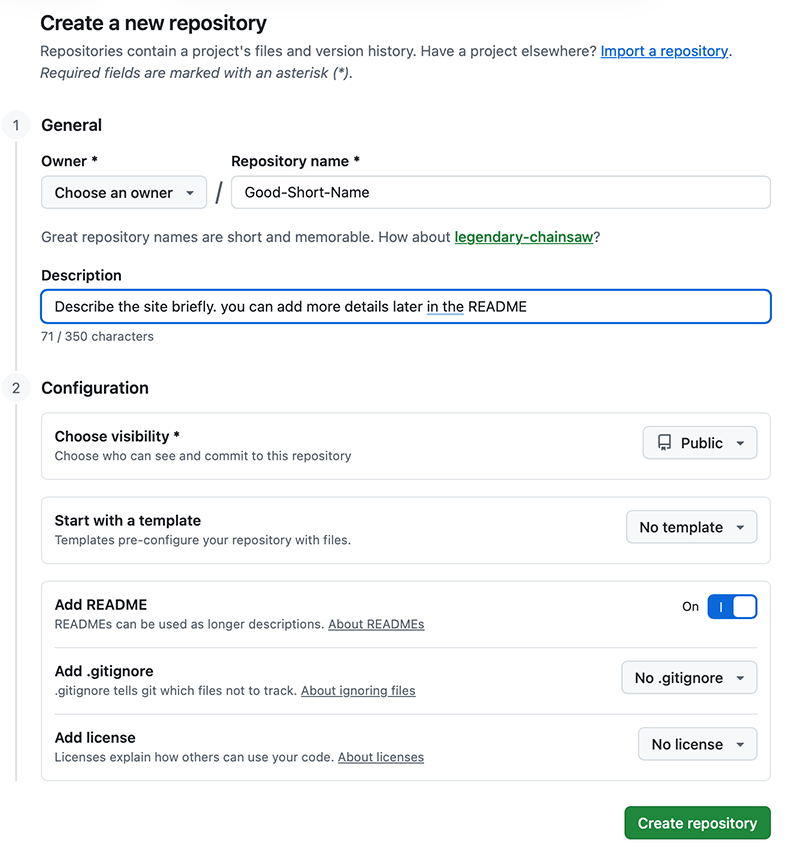
- Create a new GitHub Repository and give it short but meaningful name
- Provide a descrioption of the Repository - you can edit this more later.
- Confirm visiibility is set to Public
- Enable the 'Add README'
- Leave the Add .gitignore and Add license as the default
- Press "Create repository"
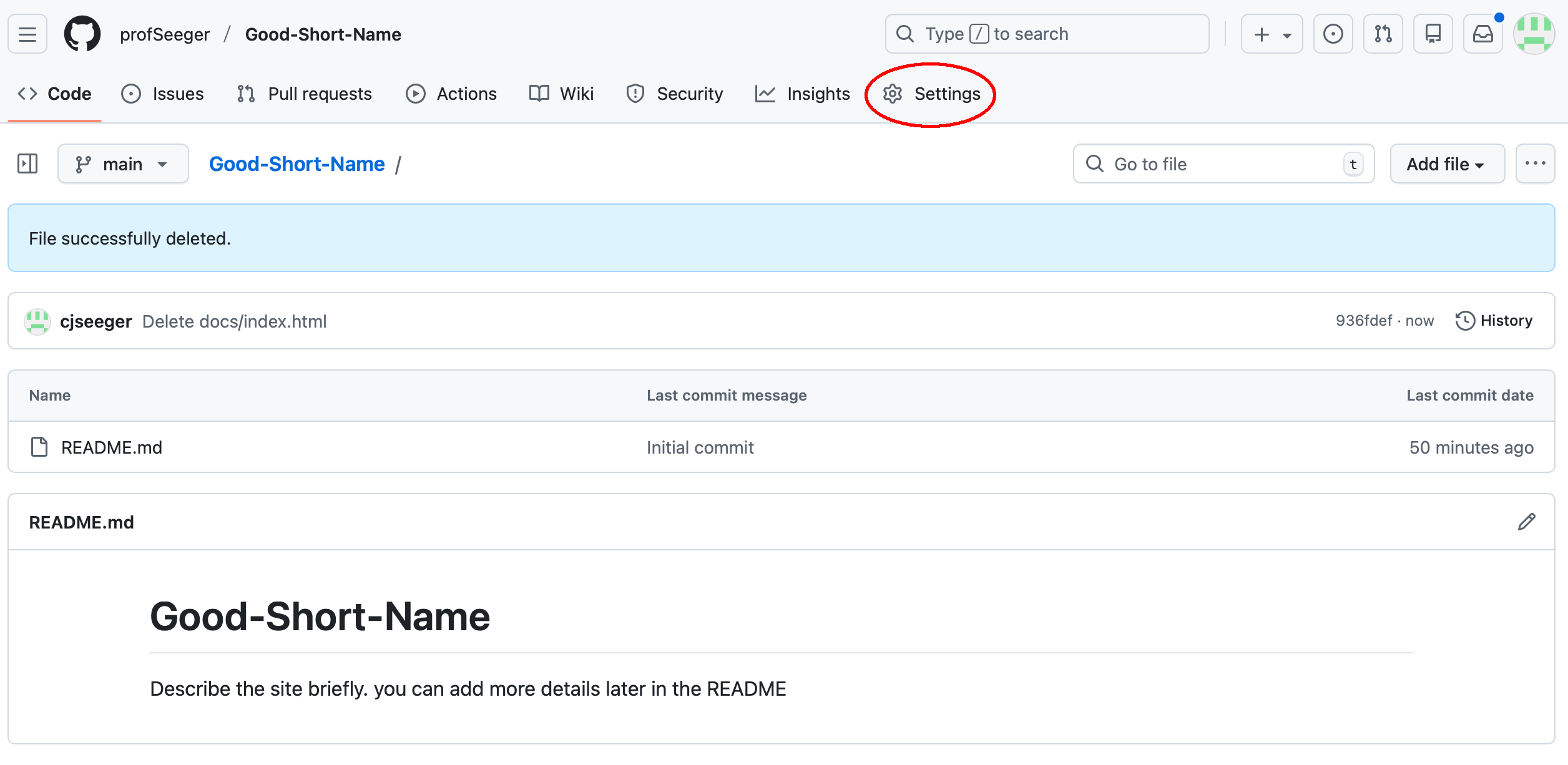
- The repository will be created and will display the contents of the README which you can edit.
- Next you need to enable GitHub Pages. Select the menu near the top right of the screen
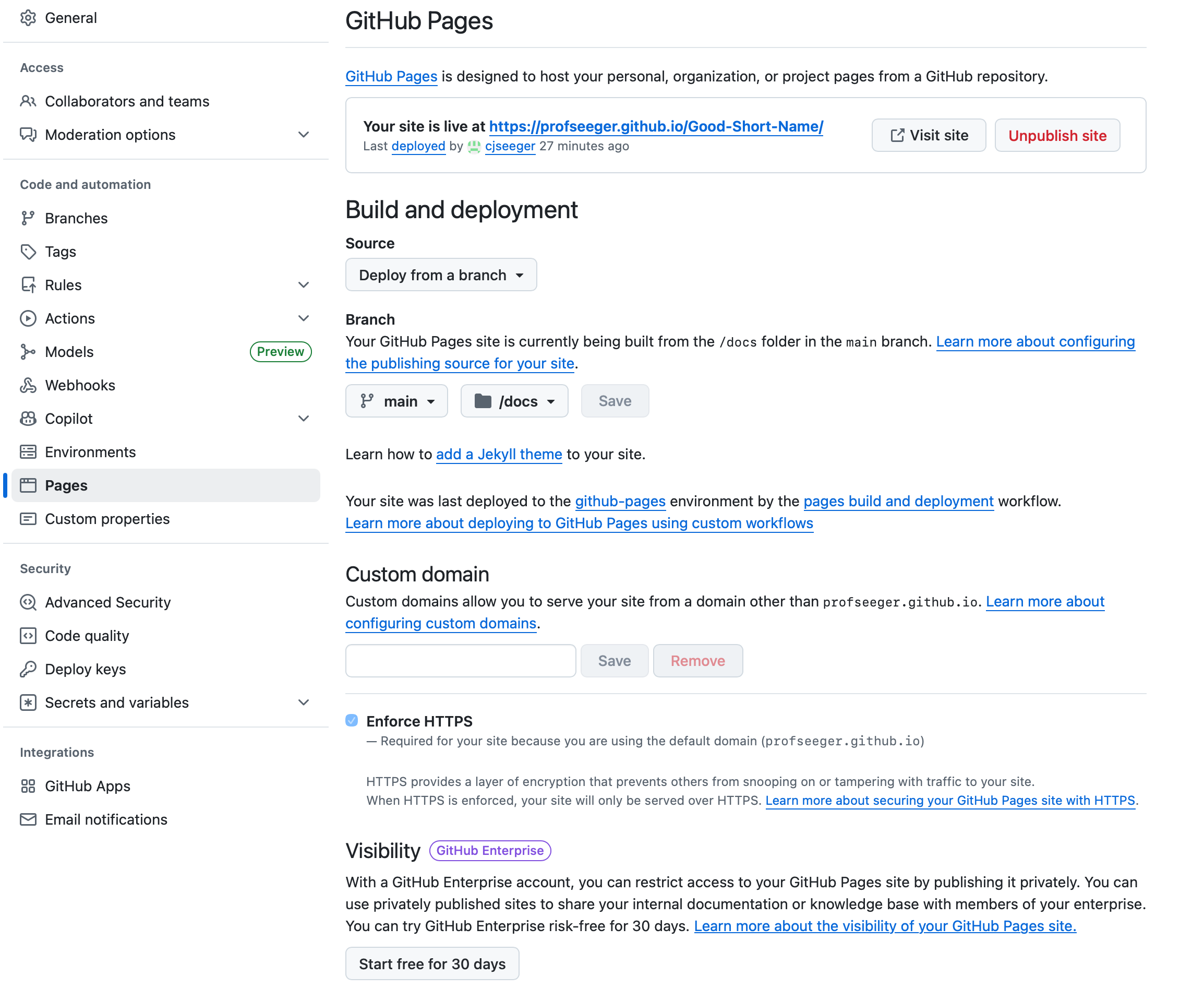
- In the settings look on the left menu for "Pages" and click it.
- In the GitHub Pages config leave Deploy from Branch selected
- Change the Branch from None to Main. This will then allow you to select /root or /docs.
If you select /root then your website will live in the root of the GitHub - for a basic site this is OK, but best practice would bee to have the files living in a directory named docs /
- Press Save (Note in this example I used /Docs
- You can optionally create a custome domain, read instructions if this is of interest, but for now just return to the main repository by clicking the name of the repo in the top left of screen.
- Since /docs was set to the location of the web pages, you need to create that directory and a file in it to use as the main page.
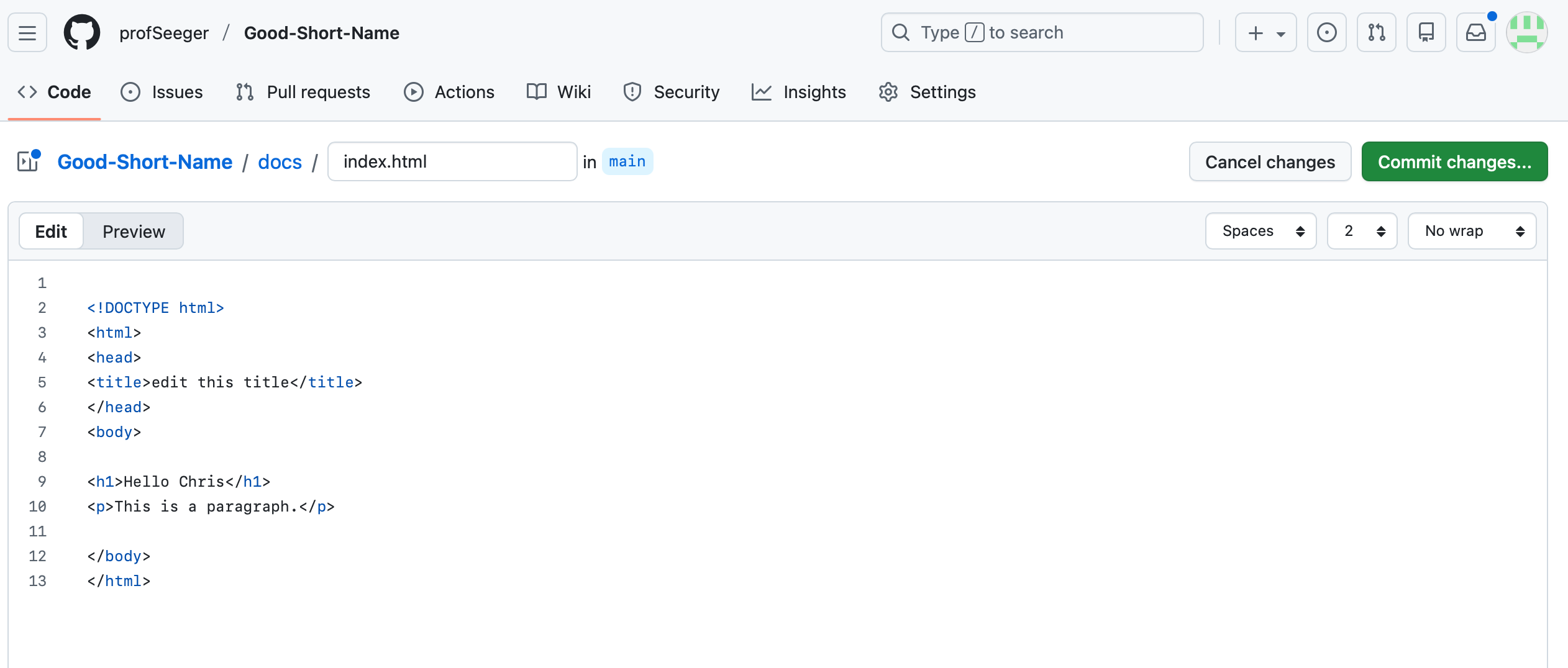
Create a new file and name it docs/ this will make the directory and a new name box will appear for you to write index.html
- a basic HTMl code block is below and can be copied and pasted into the editor. Maybe change the title and add a hello your name to the body of the page.
- Commit the page
- GitHup will process and start to build the page. This can take a few minutes to complete, You can check the status by clicking the Actions menu item
- To access the URL that the page is located at, go back to the main repository page, in the upper right it wiss say "About" with a gear icon. Click the gear.
Where it asks for a Website address, check "Use your GitHub Pages website" and save changes
- The about will now show the link to your page. If the action to create your page has completed you will be able to click the link and see your site.
- Continue to edit your index.html page, add other pages, data, or images. Be careful of case in file names, and put images and such in appropriate directories to avoid creation of an unorganized file structure.
Page Title


This is a Heading
This is a paragraph.
Screenshot: Create a repository
Screenshot: Initial repository
Screenshot: Page Settings
Screenshot: Add index.html